If you were confused on how to configure a button in ScoreApp to download the PDF report, there is a work around available.
In a standard button, you can’t type in a ScoreApp variable for people to download the PDF.
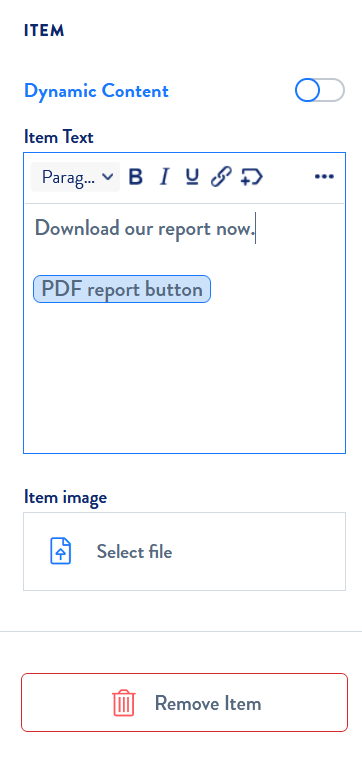
What you can do is to find a place at the bottom of your text box and insert the {PDF report button} variable in the text box.
Here’s how it looks like:
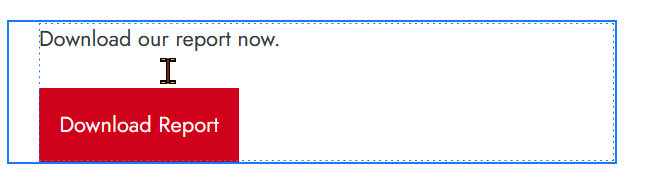
And the results will be a button that looks like this.
Changing the text on the button
If you want to change the text on the button, you will have to do it with CSS.
Find the right button CSS class, and do the following:
.MuiTypography-root-309 p {
font-size:0 !important;
}

.MuiTypography-root-309 p a:after {
content: " Download your guide " !important;
font-size: 15px !important;
}
Linking parts of your text to the PDF results
You can also link any text to the PDF results.
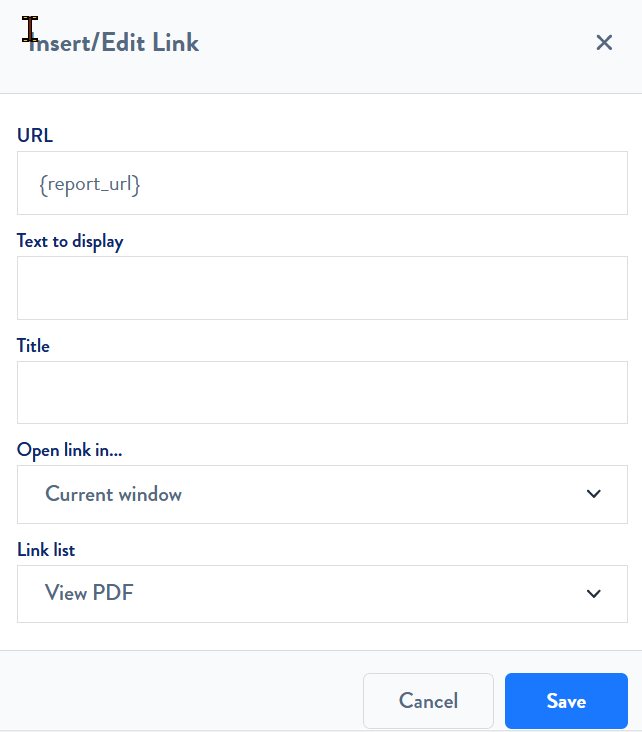
You do it by adding the {report_url} variable in the URL field.